
Load one second too long, and nearly a third of your visitors are already gone. Google’s mobile research shows that just a two-second delay could spike your bounce rate by 32%. This means your slow site is quietly handing sales and leads to faster competitors.
WordPress is a powerful platform, but as plugins pile up and your database gets heavy, your load times naturally suffer. While this might be a common frustration, you do not have to put up with a sluggish site or rebuild everything from scratch. Finding and fixing the exact bottleneck dragging your site down is surprisingly easy once you know where to look.
What Does Website Performance Mean in WordPress?
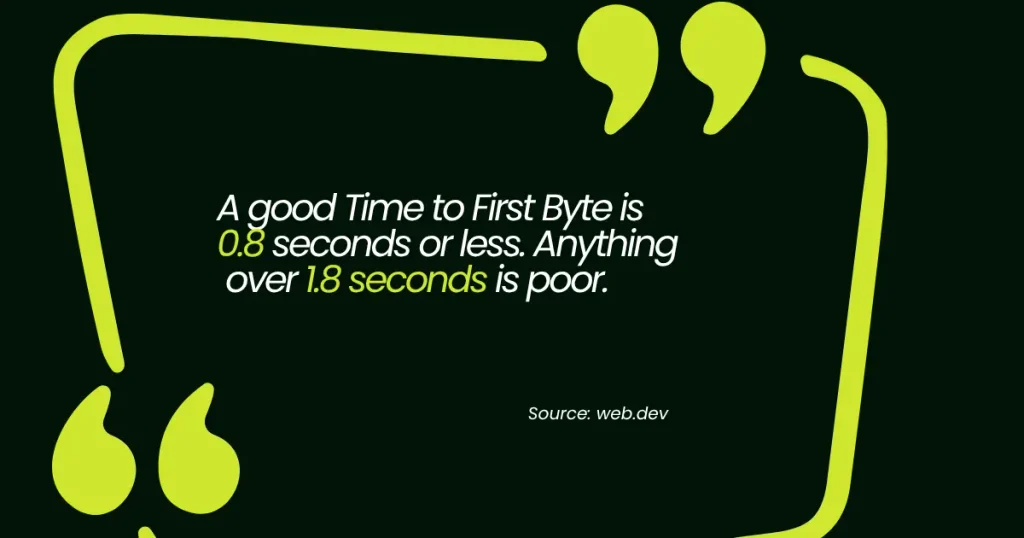
Website performance covers more than how fast a page appears on screen. It includes how quickly the server responds to a request, known as Time to First Byte, how fast the main content renders and how stable the page feels while it loads and while a visitor interacts with it.
For a WordPress site specifically, performance is shaped by five layers working together: hosting infrastructure, the theme, active plugins, media files, and the database. A weak link in any one of these layers can drag down the whole site, even when the other four are optimized well.
| Layer | Role in Performance |
| Hosting Infrastructure | Determines server response time and how well the site handles traffic spikes |
| Theme | Adds baseline code weight and render time before any content even loads |
| Active Plugins | Each one contributes scripts, styles, and database queries on every page load |
| Media Files | Large, uncompressed images and videos slow down rendering and delay Largest Contentful Paint |
| Database | Post revisions, spam comments, and old transients slow down every query the site runs |
Each layer works independently, so a fast host cannot compensate for a bloated theme or an unoptimized database. Fixing them together, rather than chasing one metric in isolation, is what produces a WordPress site that stays fast over time.
Why Does WordPress Site Speed Affect Rankings?
Speed hits your business twice. It shapes how visitors behave, and it shapes how Google ranks your page.
- Walmart found that every one-second improvement in load time boosted conversions by 2 percent.
- Google confirms that page experience, including Core Web Vitals, factors into ranking, especially in close calls between pages that already match search intent well.
A slow page doesn’t just lose visitors. It also competes at a disadvantage for the top spots in search results.
A slow WordPress site drags down every step of the funnel, from the first click in search results to the final checkout. For service businesses and e-commerce stores alike, that cost compounds: lost rankings and lost conversions feed each other. It’s the same reason technical SEO services put speed testing near the top of every audit checklist.
What are the Factors that Slow Down a WordPress Site?
That extra weight usually comes from a handful of common causes stacking together. In fact, a typical site is carrying more than one of them at the same time. Here are the usual culprits and why each one drags down performance.
| Common Cause | Why It Hurts Performance | Recommended Fix |
| Bloated, uncompressed images | Large files increase load time and delay the Largest Contentful Paint | Resize, compress, and convert to WebP or AVIF before upload |
| Too many active plugins | Each plugin adds HTTP requests, scripts, and PHP processing | Deactivate unused plugins and test performance one at a time |
| Shared or underpowered hosting | Limited server resources raise Time to First Byte | Move to hosting built for WordPress with server-level caching |
| No caching layer | The server rebuilds every page from scratch on each visit | Install a caching plugin like WP Rocket or WP Super Cache |
| Unminified CSS and JavaScript | Larger file sizes and more render-blocking requests | Minify and combine files through a caching plugin |
| Outdated PHP version | Slower code execution and missed performance improvements | Update to the latest supported PHP version |
| Unoptimized database | Slower queries as post revisions and spam comments pile up | Clean up with WP-Optimize or Advanced Database Cleaner |
| No content delivery network | Visitors far from the server experience slower delivery | Connect a CDN like Cloudflare or Bunny CDN |
A site rarely slows down because of one big issue. It’s usually four or five of these stacking on top of each other, which is exactly why a quick fix never sticks for long. The good news is that every cause on this list has a fix, and once you know where the weight is coming from, clearing it is far more straightforward than it looks.
How to Improve Website Performance in WordPress
Start with the foundation, then work your way up to the details. That order gets you the fastest, longest-lasting results, since each fix builds on the one before it. It beats guessing at random fixes and hoping something sticks.
1. Test a WordPress Site’s Speed
Before touching a single setting, run your site through a speed test and record where it stands. Tools like Google PageSpeed Insights or GTmetrix give you a clear baseline: your Largest Contentful Paint, Interaction to Next Paint, Cumulative Layout Shift, and Time to First Byte all in one report. Without that starting point, you have no way to tell which fix actually moved the needle later.
Test both mobile and desktop separately, since Google’s mobile-first index weighs your mobile score more heavily. Run the homepage and a couple of key inner pages, not just one, since a slow product page or blog post can drag down the site’s overall performance even when the homepage looks fine. Save these results before you make any changes, then test again after each round of fixes rather than after every single tweak.
2. Start With Hosting Built for WordPress
Shared hosting plans split server resources across hundreds of accounts, which drives up Time to First Byte the moment traffic grows. Moving to a host that specializes in WordPress, with server-level caching and adequate memory limits, is often the single change that improves every other metric on the site.
- Server-level caching built into the hosting stack, not just a plugin
- Enough memory and CPU allocation to handle traffic spikes without slowing down
- Support for current PHP versions
- A content delivery network included or easy to connect
Providers like Kinsta and SiteGround build this checklist right into their hosting, bundling caching, resource allocation, and a CDN together instead of leaving you to add them separately. That’s what turns hosting into an active part of your speed strategy, not just where the site lives.
3. Install a Caching Plugin
Speeding up your site does not have to be a complicated and highly technical process. A caching plugin helps you by saving a static version of each page so the server does not have to rebuild it from scratch for every visitor. Without one, WordPress reruns that full process on every single request, even for the same page loaded back to back.
Options like WP Rocket, W3 Total Cache, and WP Super Cache handle page caching, browser caching, and basic minification in one setup. This single install is often the highest-leverage way to improve website performance in WordPress without touching code.
4. Compress and Resize Every Image
Oversized images are one of the more common reasons a page fails its Largest Contentful Paint target. A single unoptimized hero image can single-handedly push your load time past Google’s threshold, even when every other element on the page is fast.
| Fix | What It Does |
| Resize to display dimensions | Stops the browser from downloading a larger file than it needs |
| Convert to WebP or AVIF | Cuts file size while keeping visual quality, where the theme supports it |
| Compress before upload | Strips excess data using a plugin like Smush or ShortPixel |
You can easily automate the resizing and compression steps using a dedicated plugin. However, picking the most efficient file type from the very beginning is what truly keeps your pages light. For a closer look at which formats balance quality against file size, our best image format for SEO breakdown covers the tradeoffs in more detail.
5. Serve Assets Through a CDN
A content delivery network stores copies of images, CSS, and JavaScript on servers positioned around the world, so a visitor in another country is not waiting on a request that has to travel back to the origin server. Cloudflare, Bunny CDN, and StackPath all integrate with WordPress with minimal setup. A CDN helps with:
- Faster load times for visitors outside the site’s home region
- Less strain on the origin server during traffic spikes
- Basic bot and DDoS filtering on the majority of providers
- Smoother pairing with the caching plugin already running on the site
Between them, the caching plugin from step two and a CDN cover both ends of a request, the server doing less work and the file arriving from a location closer to the visitor.
6. Minify and Combine CSS and JavaScript
Minifying strips unnecessary spaces, comments, and characters from code files, while combining files reduces the number of separate requests a browser needs to make. Together, these two techniques help pages load faster by trimming file size and cutting down on the back-and-forth between the browser and server.
A large share of caching plugins include this as a built-in option, though it is worth testing the site carefully afterward, since aggressive minification can occasionally break a theme’s layout. Running a quick visual check across key pages after enabling it can save you from shipping a broken layout to visitors.
7. Audit and Remove Unnecessary Plugins
Every active plugin adds its own scripts, styles, and database queries, even on pages where a visitor never touches that feature. Over time, these extra calls can quietly stack up and drag down load speed without an obvious cause.
| Step | Action |
| 1 | Deactivate one plugin |
| 2 | Measure server performance |
| 3 | Reactivate if no change |
| 4 | Repeat for next plugin |
The WordPress core team recommends this one-at-a-time approach, which makes it straightforward to spot exactly which plugin is responsible for a slowdown.
8. Keep PHP, WordPress Core, and Themes Updated
Newer PHP versions process code faster than older ones, and running an outdated version is one of the more overlooked reasons a WordPress site is slower than it should be.
Keeping things updated closes that gap and often patches security issues at the same time:
- Update the PHP version through your hosting control panel
- Keep WordPress core on its latest version
- Keep your theme updated
- Keep every plugin updated
Staying current on all four fronts is one of the simplest maintenance habits that pays off in both speed and security, with little downside as long as updates are tested on a staging site first.
9. Clean Up the Database
Post revisions, spam comments, and expired transients accumulate in the background and slow down every database query the site runs. Left unchecked, this buildup adds unnecessary weight to the database that every page load has to work through.
A plugin like WP-Optimize or Advanced Database Cleaner can clear this clutter safely on a recurring schedule. Setting it to run automatically means the database stays lean without needing to remember to clean it up manually.
10. Lazy Load Offscreen Images and Videos
Lazy loading delays the loading of images and videos until a visitor scrolls close to them, instead of forcing the browser to load every media file on the page at once.
| Version | Lazy Loading Support |
| WordPress 5.4 and earlier | Not included natively |
| WordPress 5.5+ | Included by default |
WordPress has included native lazy loading since version 5.5, so a large number of sites already benefit from it without any extra plugin.
11. Choose a Lightweight, Well-Coded Theme
A theme built around a heavy page builder and dozens of unused features carries that weight on every single page load, even on pages that never use those features. Switching to a lightweight theme, or trimming an existing one down to the modules actually in use, removes that overhead permanently:
- Switch to a lightweight, performance-focused theme
- Or disable unused builder modules and features in your current theme
- Remove unused widgets and page elements
- Check theme options for built-in bloat (extra sliders, animations, icon sets)
A lighter theme means faster rendering on every page, especially on mobile. Once the switch is made, the performance gain is passive and keeps paying off with no ongoing maintenance.
What Are Core Web Vitals and Why Do They Matter?
Core Web Vitals are the three metrics Google uses to measure real-world page experience: Largest Contentful Paint, Interaction to Next Paint, and Cumulative Layout Shift. Google’s own research sets the benchmark for a good experience at a Largest Contentful Paint of 2.5 seconds or less, measured at the 75th percentile of page loads.
| Metric | Good | Needs Improvement | Poor |
| Largest Contentful Paint (LCP) | 2.5s or less | 2.5s to 4.0s | Over 4.0s |
| Interaction to Next Paint (INP) | 200ms or less | 200ms to 500ms | Over 500ms |
| Cumulative Layout Shift (CLS) | 0.1 or less | 0.1 to 0.25 | Over 0.25 |
Passing these three thresholds does more than satisfy a technical checklist. It lines up with the same fixes covered in our on-page SEO checklist, since page speed sits alongside title tags, headers, and internal linking as one of the core ranking levers Google evaluates on every page.
How Often Should You Recheck Site Speed?
A quarterly check works for the typical small business site, though any site that publishes content weekly or adds new plugins regularly benefits from a monthly check instead.
| Site Type | Recommended Check Frequency |
| Typical small business site | Quarterly |
| Sites publishing weekly / adding plugins often | Monthly |
| E-commerce stores | Ongoing/continuous |
| High-traffic publishers | Ongoing/continuous |
E-commerce stores and high-traffic publishers should treat Core Web Vitals monitoring as an ongoing task built into their regular maintenance schedule, not a box to check once and forget. Rechecking on a set schedule is what actually keeps a site ahead long after the first round of work, since the real goal is to improve WordPress site speed for good, not just for one quarter.
Turn Your Fast WordPress Site Into a Competitive Advantage
When your website loads instantly, you immediately gain an edge over every sluggish competitor in the search results. Improving your WordPress performance is about building a foundation that consistently converts: hosting that handles traffic spikes, caching that works quietly in the background, properly compressed images, and a strict maintenance habit. Combining these elements creates a frictionless experience for your visitors and a stronger signal for search engines.
You do not have to manage that technical workload alone. Sam SEO Philippines handles everything from initial speed audits to ongoing Core Web Vitals monitoring, ensuring your site maintains its competitive advantage while you focus on running your business.
Frequently Asked Questions
How long does it take to speed up my WordPress site?
Basic fixes such as caching, image compression, and plugin cleanup can be finished within a single afternoon and often show a measurable improvement as soon as testing begins. Bigger changes, such as a hosting migration or a theme rebuild, tend to take one to three weeks depending on how much custom code needs testing along the way. Rechecking the PageSpeed Insights score before and after each round of changes makes it clear which fix produced the biggest gain. For a typical small business site, a full round of optimization from hosting through images usually lands somewhere between two days and two weeks of total work, spread across a few sessions rather than one long stretch.
What is the fastest way to speed up a WordPress site?
Caching delivers the fastest visible improvement for the least amount of work, since it can cut load time noticeably within minutes of activating a plugin like WP Rocket or WP Super Cache. Image compression comes in close behind, especially on sites carrying a lot of product photos or blog graphics that were never resized before upload. Hosting produces the largest long-term improvement, but it takes longer to migrate and test than flipping on a plugin. For a same-day win, install caching first, compress images second, and treat a hosting upgrade as the next project once those two changes are confirmed and tested.
Do caching plugins really make a WordPress site faster?
Yes, caching plugins make a measurable difference on nearly every WordPress site because they stop the server from rebuilding the same page from scratch for every visitor. A static version of the page gets served directly instead, which cuts server processing time and often improves Time to First Byte along with overall load speed. The exact improvement depends on how the site was performing beforehand. A site already running on strong hosting with a lightweight theme might see a modest gain, while a site on shared hosting with a heavy page builder can see load times cut by half or more once caching is active.
Does website speed actually affect SEO rankings?
Yes, Google has confirmed that page experience signals, including Core Web Vitals, factor into ranking, particularly for close calls between pages that already match a search intent well. Speed alone will not push a poorly written page above stronger competitors, but a fast page removes one more barrier between quality content and the ranking it deserves. Speed also affects rankings indirectly through user behavior, since visitors who bounce from a slow page send a weak engagement signal while visitors who stay and interact send a stronger one. Both the direct ranking factor and the indirect behavior signal point in the same direction.
Can WordPress performance be improved without hiring a developer?
Yes, a large share of the fixes covered above, including caching, image compression, plugin cleanup, and lazy loading, can be handled through plugins and dashboard settings without touching a single line of code. A developer becomes useful for fixes that involve custom code, such as editing a theme’s functions file, migrating hosting environments, or resolving a plugin conflict that a simple deactivation test cannot isolate. Many small business owners handle the plugin-based fixes themselves and bring in outside help only for the hosting migration or a stubborn Core Web Vitals issue that keeps returning after every other fix has already been tried.